1. Basics
The screen

The top of the window (the header) is the same on every page. From left to right:
| Item | Details |
|---|---|
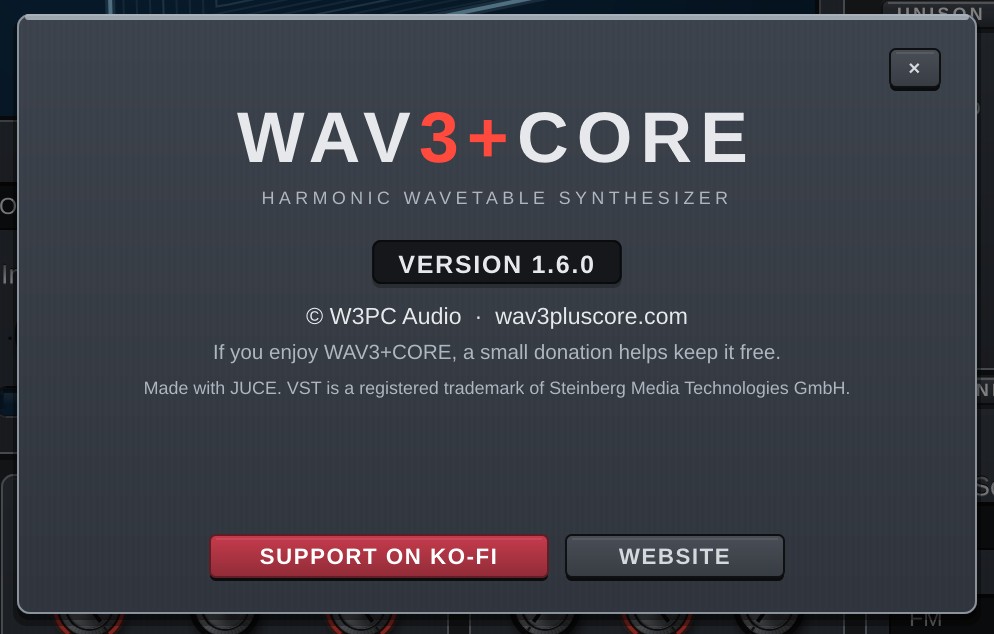
| Logo | Click it for the About screen: version, website and a Ko-fi (donation) button. |
| Page buttons | Switch between the six pages: OSC / FILTER / MOD / FX / ARP / VIEW. The button of the open page lights up. GLOBAL and MIDI are at the bottom of SOURCES on the left of the OSC page (chapters 9 and 10). |
| Preset display (LCD) | Shows the number, FACTORY / USER with the category, and the preset name. While you move a knob it shows that knob's name and value instead. A "*" after the name means the sound has been changed. Click it to open the preset window (tabs BROWSE / SHARE / AI SOUND) and type into the search field right away; right-click it for the preset menu (chapters 2 and 11). |
| ◀ ▶ | Load the previous / next preset. |
| CABLES / MOD LIST | CABLES: while on, all modulation cables of the current page stay visible. MOD LIST: opens a window listing every Mod Matrix slot in use (both in chapter 6, "Cables and MOD LIST"). |
| ↶ ↷ | Undo / redo the last change. |
| SAVE | Save a preset (chapter 2). |
| PANIC | Stops all voices and effect tails at once. Use it if a note keeps sounding. |
| RESET... | A small window asks what to reset: the part shown now (for example OSC 1, GLOBAL, MIDI, FX: Key Bloom; on the MOD page the ENV tab / LFO tab / Mod Matrix) or All parameters. Cancel does nothing. Either way one Undo (↶) brings it back. VIEW settings are not reset. |
| Scope and meter | The small screen shows the output waveform (scope). The faint bars behind it are the output level meter: the top half is L, the bottom half is R, growing from left to right (-48 to 0 dB; light part = peak, stronger part = average level). They turn orange above -1 dB. When the output clips, the thin strip at the right edge of the screen turns red for about one second (click the screen to clear it). |
| Status line | Under the scope. "V 3/12" = voices playing / voice limit, "OSC 3" = oscillators playing, "CPU" = approximate CPU use. |
| SAFE | A red tag at the top right of the scope screen: how many times the last-stage safety limiter (always on, protects ears and speakers) has acted. It only turns the sound down above +18 dBFS and clips at +24 dBFS; normal sounds are never touched. If a calculation broke down and the sound was muted, the same tag also shows "NaN" with a count. Cleared by changing the sound or pressing PANIC. |
| MASTER | Overall volume. |
Keyboard and wheels

The bottom of the window has an on-screen keyboard. Click a key to play it.
- The two wheels on the left are Pitch Bend (springs back to the centre) and Mod Wheel (CC#1; double-click to reset).
- Right-click a key to latch (hold) it. Right-click or click it again to release.
- The small buttons VEL / NOTE / AT at the right end of the keyboard are the Mod Matrix sources Velocity (how hard a key is played) / Note (pitch) / Aftertouch (1.6). Click or right-click one for the menu that assigns it to knobs (chapter 6). VIEW Hide hides them together with the keyboard.
- Light blue keys are the keys being pressed (playing). The range with a coloured band and chord names is the chord pad zone (chapter 8).
- Grey keys are notes outside the current scale while Lock (Scale Lock) on the ARP page is on. This is only a display: they still play as usual (with Keys on, they snap to the scale; chapter 8).
About screen
Click the WAV3+CORE logo at the left of the header. It shows the version number and buttons for donations (SUPPORT ON KO-FI) and the website (WEBSITE). Close it with the × at the top right, the Esc key, or a click outside it. The screen sways a little when it opens and when you move the plugin window (the buttons still work while it sways).
VIEW page
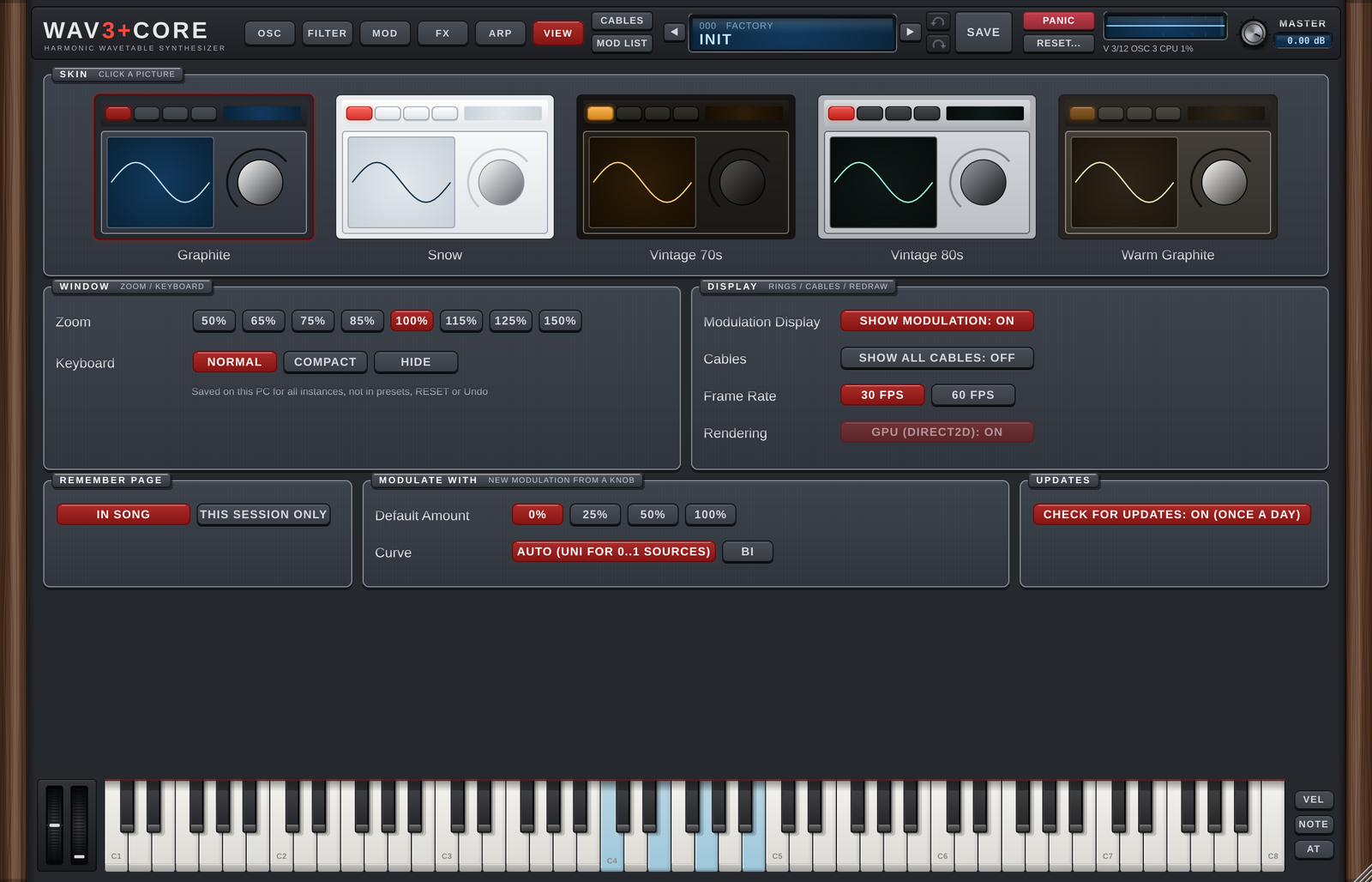
Display settings. They are stored on this computer and become the default for every instance (the zoom is also saved with each song). They are not part of presets, RESET or Undo.
| Item | Details |
|---|---|
| Skin | Click a picture to choose the skin (Graphite / Snow / Vintage 70s / Vintage 80s / Warm Graphite). |
| Zoom | Window size (50-150%). You can also drag the bottom-right corner of the window. |
| Keyboard | Size of the keyboard and wheels: Normal (as before) / Compact (lower keys) / Hide. Compact and Hide make the window shorter; the pages above keep their size. |
| Modulation Display | Modulation rings around the knobs and dots in the LCDs (Show Modulation). |
| Cables | Same as CABLES in the header (keep all cables of the page shown). |
| Frame Rate | How often moving displays (meters, LCDs, waveforms) are redrawn: 30 fps / 60 fps (smoother, a little more CPU / GPU). |
| Rendering | Draw with the GPU (Direct2D, Windows). Turn it off if the window flickers. |
| Remember Page | Save the open page with the song (In Song) or only while the song stays open (This Session Only). GLOBAL / MIDI shown on the OSC page are remembered too. The VIEW page is not remembered (the window opens on the page before it). |
| Modulate With | Starting amount (Default Amount: 0 / 25 / 50 / 100%) and curve (Curve: Auto = UNI for one-way sources / BI) of a modulation made with a knob's right-click Modulate with or the assign mode. |
| Updates | Check for updates once a day. Off = no network access at all. |
Update check
When the window opens, WAV3+CORE checks for a new version at most once a day. It only reads the version information on wav3pluscore.com; nothing that identifies you or your computer is sent.

- If a new version is available, a small UPDATE appears at the top right of the preset display (LCD). Click it to open the download page in your browser. Nothing is downloaded or installed automatically.
- If the check fails (offline, for example), nothing is shown.
- Turn off Updates on the VIEW page and no connection is made at all.
Drop-downs
| Action | Result |
|---|---|
| Click | Open the list of choices. |
| Hover and click ◀ ▶ at the edges | Previous / next choice; wraps around at the ends. |
| Hover and turn the mouse wheel | Up = previous choice, down = next; stops at the ends. In scrolling lists the wheel scrolls instead, and right after a scroll (about 0.5 s) it does not change drop-downs. |
Knobs
| Action | Result |
|---|---|
| Drag up / down | Change the value. |
| Drag with the right button | Fine adjustment (8 times finer). |
| Double-click | Reset to the default. |
| Right-click | Open the knob menu (below). |
The knob menu:
| Item | Details |
|---|---|
| Enter Value... | Type a value. Enter confirms, Esc cancels. For time knobs, a number without a unit is read in the unit shown (with "250 ms" shown, typing 500 gives 500 ms; type "0.5 s" for seconds). |
| Reset to Default | Reset to the default. |
| Modulate with ▸ | Choose a modulation source (LFO, envelope, velocity…) for this knob. It goes into the first free Mod Matrix slot (nothing happens if all 40 slots are in use). The amount (Range) is the Default Amount you chose (initially 0%; +25% / +50% / +100% are also available) and the curve is the Default Curve (initially Auto = Uni-Linear + for one-way sources such as envelopes and macros, Bi-Linear + for LFOs and the like; Always Bi-Linear + is also available). The knob's popup (with a small amount knob) opens right away so you can dial in the amount (once the mouse has been over the knob or the popup, it closes as usual when you move away). A 0% connection shows as a dashed ring around the knob and a dashed cable (it does not change the sound yet). |
| Mod Amount... | Adjust the depth of the modulation connected to this knob, right there. |
| Remove Modulation | Remove the modulation connected to this knob. |
| MIDI Learn | Choose it, then move a MIDI controller to assign it to this knob (chapter 10). |
Resetting a section
Right-click the title strip of a section (plate) to get "Reset …". It resets only the knobs and buttons inside that section.
Copying oscillators
On the OSC page, right-click an OSC row in SOURCES to copy, paste, copy to another OSC or swap. The LFO tabs on the MOD page offer the same for LFO settings only.
How modulation is shown
When a knob is modulated, an arc (the range the modulation moves it through) and a dot (its current position) appear around it. LCD screens also show the current position as dots. Turn this off with Show Modulation in VIEW.
Zoom and skins
VIEW also has these settings (v1.5; each is saved per computer and does not affect the sound):
- Remember Page: when you close and reopen the window, it opens on the page you left.
In Song(default) also saves the page with the song, so it opens there when you reload the project.This Session Onlyonly restores it when you reopen the window (not saved with the song). - Frame Rate: how many times per second moving displays (meters, LCDs, waveforms) are redrawn.
30 fps(default) or60 fps(smoother, more drawing work). - GPU Rendering (Direct2D): draws the window with the GPU on Windows (on by default). If the window flickers or turns black on your computer or DAW, turn it off to draw with the CPU instead.
Use Zoom in VIEW to set the window size from 50% to 150%. You can also drag the bottom-right corner of the window, or the edges and corners of the DAW's plug-in window.
- While you drag, the screen is shown as a stretched still picture (slightly soft). When you stop, it is redrawn sharply at the new size.
- The DAW's window can take any shape. The interface is scaled to the largest size that fits while keeping its proportions, centred, and the rest is filled with the panel colour.
- When you stop, if the window's shape does not match the interface, WAV3+CORE asks the DAW for a size that fits, following the direction you dragged (width or height). Some DAWs keep the window as it is. Sizes below 50% or above 150% are brought back into that range.
- Only while you drag the triangle at the bottom-right corner does the window keep its proportions.
- The zoom is saved with each song (project) and comes back when you reopen it. A new instance opens at the zoom you chose last.
There are two skins:
- Graphite: dark panel (used for the pictures in this manual)
- Snow: white panel
DAW automation
Almost every parameter can be automated in your DAW. The exceptions are the parameters that set the routing; they are still saved with the sound as usual.
- Mod Matrix SOURCE / CONTROL / DESTINATION
- Destinations of the ARP MOD lanes
- FX CHAIN order and parallel (‖)
- FX In of each source
- OSC Trigger / Env (TRIGGER)
- Filter 2 Own ENV
This keeps the automation in your songs from shifting when more choices (destinations, effects…) are added in later versions.
The full parameter list is in the last chapter (chapter 14).
Version 1.6.0 · 2026-11-08 · W3PC Audio · wav3pluscore.com