11. AI SOUND
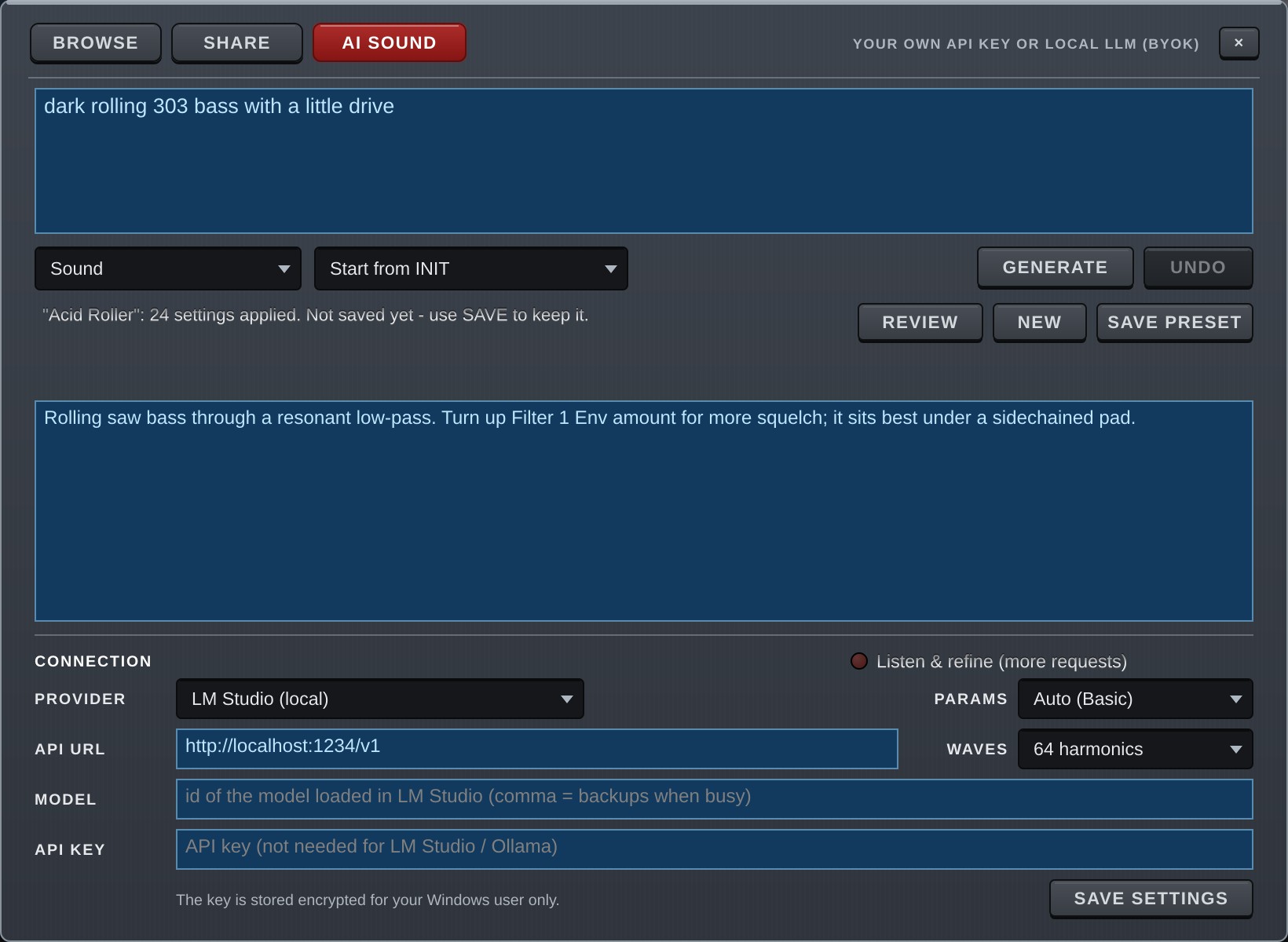
AI SOUND lets you describe a sound in words; an AI then chooses the parameters and builds the patch. It can also make arpeggiator steps, chord progressions and MIDI phrases.
No AI is built into WAV3+CORE. You connect it to your own AI: a cloud AI used with your own API key, or a local LLM running on your computer (BYOK = Bring Your Own Key).
AI SOUND is a tab of the preset window: click the preset display (LCD) in the header and choose AI SOUND (or use AI Sound... in the LCD right-click menu, chapter 2). If you used the AI SOUND tab last time, the next click on the LCD opens it again. Esc, the × at the top right, or a click on the dark area outside closes the window. While the AI is working, a click outside or on another tab does not close it (use Stop, or Esc / × to stop and close).
What is sent
When you make a request, the following is sent to the provider you set up (a cloud AI or a local LLM):
- The text of your request.
- A description of WAV3+CORE and the list of parameters the AI may change (the range is set with PARAMS).
- The values of the current sound's parameters (only those that differ from the defaults).
- With Listen & refine on, the results of measuring the sound (numbers such as brightness and length; no audio is sent).
Depending on the provider, sent data may be stored or used to improve their services. Please check each provider's terms.
Connecting
Set it up under CONNECTION at the bottom of the window.
| Field | Details |
|---|---|
| PROVIDER | OpenAI / Anthropic (Claude) / Google Gemini / LM Studio (local) / Ollama (local) / Custom (OpenAI-compatible) |
| API URL | Filled in for the chosen provider. Enter it yourself for Custom. |
| MODEL | The model ID (see your provider's documentation). List backups separated by commas and the next one is tried when the first is busy (e.g. model-a, model-b). |
| API KEY | Your key for a cloud AI. Leave it empty for a local LLM. |
| PARAMS | Which parameters the AI may change (see "PARAMS"). |
SAVE SETTINGS saves them.
- The API key is stored encrypted, readable only by your Windows user, in
%APPDATA%\WAV3PLUSCORE. It is never written into presets or project files. - The key is never sent over
http://(unencrypted) to anything other than your own computer (you get an error). Usehttps://for cloud AIs. - Never show your API key to anyone or paste it into chats or social media.
Setup examples
If you are not sure which AI to use, these two are the easiest to try.
| Google Gemini | LM Studio | |
|---|---|---|
| Runs on | The cloud (Google) | Your own computer |
| Cost | Free tier (no card needed) | Free |
| Sound design quality | High | Depends on your computer and model |
| You need | A Google account | A computer with enough memory |
| Data | Sent to Google | Stays on your computer |
Screens, names, free-tier terms and model names of these services can change. This section reflects October 2026.
Google Gemini (try it on the free tier)
1. Create an API key
- Open Google AI Studio (https://aistudio.google.com) in your browser and sign in with your Google account. Accept the terms the first time.
- Click Get API key at the bottom left, then Create API key.
- Copy the new key.
2. Set up WAV3+CORE
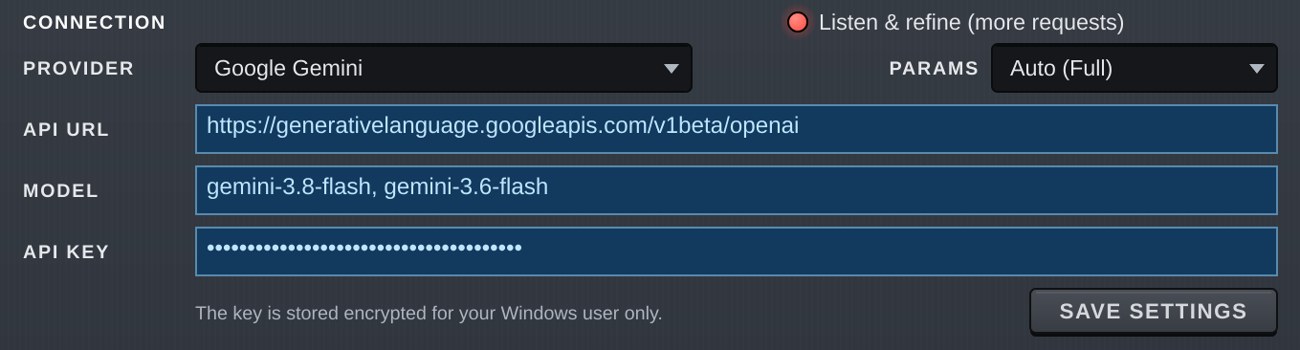
- Click the preset display (LCD) and open the AI SOUND tab.
- Choose
Google Geminiunder PROVIDER (the API URL is filled in). - Enter
gemini-3.8-flashunder MODEL. Adding a backup after a comma helps when the first is busy (e.g.gemini-3.8-flash, gemini-3.6-flash). - Paste the key under API KEY.
- Click SAVE SETTINGS. PARAMS can stay at
Auto(Full for cloud AIs). - Describe a sound in the box at the top and click GENERATE (e.g.
bright supersaw trance lead).
About the free tier
- The free tier needs no card. Requests per minute and per day are limited; see the limits in AI Studio.
- Content sent on the free tier may be used to improve Google's products (per Google's pricing page). If that matters to you, use the paid tier (set up Billing) or a local LLM.
- If you get "503" or similar busy errors, wait a little or add a backup model in MODEL.
LM Studio (run it on your computer)
LM Studio is a free app that runs an AI (a local LLM) on your own computer. There are no fees and no data leaves your machine.
1. Prepare LM Studio
- Download and install LM Studio from https://lmstudio.ai.
- Find and download a model on the Discover screen. Start with a small one (e.g. Gemma 4 E4B =
google/gemma-4-e4b) that fits in your computer's memory (VRAM). - Open the Developer screen (Local Server in older versions), load the model and start the server. Keep the default port
1234. - In the load settings, set Context Length (how much the AI can read at once) to about
16384. If it is too short you get "The AI ran out of room…". - For models with a thinking / reasoning feature, turning it off makes them more reliable.
2. Set up WAV3+CORE
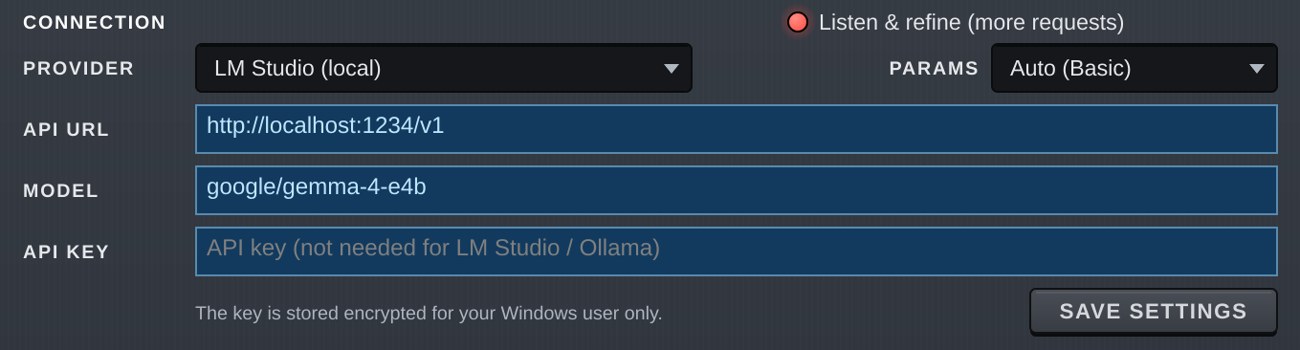
- Choose
LM Studio (local)under PROVIDER (the API URL becomeshttp://localhost:1234/v1). - Enter the model identifier exactly as LM Studio shows it under MODEL (e.g.
google/gemma-4-e4b). Copy and paste it to avoid typos. - Leave API KEY empty.
- Click SAVE SETTINGS. Leaving PARAMS at
Auto(Basic for local models) is recommended. - With the LM Studio server running, click GENERATE.
If it does not work
- "Set the model id.": MODEL is empty.
- "HTTP 400", "HTTP 404" and so on: check that MODEL matches the identifier shown in LM Studio, and that the model is loaded and the server is running.
- "The AI ran out of room…": increase Context Length.
- No reply / very slow: the model may be too large. Use a smaller model, or set PARAMS to Basic.
Others
- OpenAI / Anthropic (Claude): create an API key in their developer consoles (OpenAI Platform / Claude Console), choose the PROVIDER and enter MODEL and API KEY. Paid per use.
- Ollama: install a model with
ollama pull <model name>, chooseOllama (local)under PROVIDER and enter the model name under MODEL (the API URL ishttp://localhost:11434/v1).
What to make (modes)
Choose what to make in the box at the bottom left.
| Mode | Makes |
|---|---|
| Sound | A sound (parameters). |
| Arp Steps | ARP step lanes (VEL / OCT / PITCH / SLIDE / ACC…). |
| Chord Progression | A chord progression, placed on the chord pads and also saved as a MIDI file. |
| MIDI Pattern | A MIDI phrase, put into the ARP's MIDI Pattern slot and also saved as a MIDI file. |
MIDI files made by the AI are saved in Documents\WAV3PLUSCORE\MIDI\AI. The MIDI FOLDER button (shown for Chord Progression / MIDI Pattern) opens the folder so you can drag the files into your DAW.
The AI is instructed not to copy existing songs.
Drawing waves (WAVES)
Set WAVES in the settings area to 32 harmonics, 64 harmonics or 128 harmonics and, in Sound mode, the AI can draw its own waves to fit the sound. With Off it uses only the built-in waves.
- The AI draws a single-cycle wave by listing harmonic strengths. More harmonics give more detailed, brighter waves, but a longer reply that uses more tokens (cost).
- Up to 4 waves per reply, placed in Wave A-D of the oscillators (OSC1-6 when PARAMS is Full or above, otherwise OSC1-4).
- Each wave is stored, with a name, in an Add slot of ADDITIVE OSCILLATORS (chapter 9). Empty Add slots are used first; when none are free, a slot is overwritten.
- When a built-in wave is good enough, the AI picks it instead of drawing one.
- UNDO goes back to the sound before the AI changed it, drawn waves included.
Drawing LFO shapes (Custom)
The AI can also draw the Custom LFO shape (the shape you draw yourself). This works in Sound mode at any WAVES setting.
- It can draw the LFOs whose shape PARAMS lets it choose: the OSC LFOs (OSC1-6 at Full and above, otherwise OSC1-4) and, from Standard, the Shape of Chorus / Flanger / Phaser / Hyper.
- The AI draws one cycle as points (position, height and the bend to the next point). The LFO it draws is set to Custom, and the shape is saved with the preset.
- When a built-in shape is enough, the AI picks it instead of drawing.
- If the points are unusable (too few, or flat with no movement), a sine-like shape is used.
- UNDO goes back to the sound before the AI changed it, drawn shapes included.
Making a request
- Describe the sound you want in the box at the top. Any language is fine.
- Choose Start from INIT (build from the initial state) or Change the current sound (edit what you have).
- Press GENERATE (it turns into STOP while working).
The AI replies with a short comment, in the language you wrote in.
- Pressing GENERATE again continues the conversation, so you can ask for changes ("brighter", for example).
- NEW forgets the conversation and starts over.
- UNDO returns to the sound before the AI changed it.
- REVIEW asks the AI for its opinion of the current sound and how to improve it. Nothing is changed.
- SAVE PRESET saves the AI's sound as a preset (with the AI's name and category, in the
AIfolder).
Arpeggiator and chords: the AI does not touch the arpeggiator or chord settings unless you ask. Even with Start from INIT, your current arpeggiator, chord and MIDI pattern setup is kept.
Tips
- Mention the kind of sound (lead, pad, bass…), brightness, thickness, movement and effects. Example:
bright supersaw trance lead with a little delay - Movement (LFOs and so on) is only added if you ask. Write things like
slowly evolvingorwobblewhen you want it. - You can ask by effect or knob name too, such as "add Conv Reverb" or "cut the lows with the EQ" (within the PARAMS range).
Listen & refine
When on, after a Sound is made the sound is played in the background and measured, and the AI sees the results and fixes the patch (up to 2 rounds).
- For the measurement the arpeggiator and chord functions are switched off; C3 is held for 1.5 s, then a C major chord at C4 for 1.5 s.
- "Listened and checked: the AI is happy…" in the status line means the AI accepted the sound.
- It uses more requests, so it uses more tokens (cost).
PARAMS
Choose which parameters the AI may change. A wider range allows finer sound design but makes the description sent to the AI longer.
| PARAMS | Range |
|---|---|
| Basic | Main controls (OSC1-4, filters, envelopes, main effects, Mod Matrix 1-6…). For local LLMs. |
| Standard | Basic + EQ (also the EQ On and each band's On and Slope) and all effects (also FX Filter and PRE LIMITER). |
| Full | Standard + wave shaping (Wave B-D, Intensity, Wave Effects, harmonic EQ), OSC5-6, all Mod Matrix slots 1-40 (with Sync), envelope details, Free ENVs, NOISE / STRING / METAL / WAVE SEQ, macros, UNISON CHORD, Harmonic morph, Pitch Quantize, the OSC Pitch and LFO→Pitch, the AMP ENV Level, the Filter ENV Mod Only, Analog / Round. |
| Everything | Almost everything, except the LIMITER, the PRE LIMITER lookahead, sidechain, FX order and parallel routing, Cut Group and quality settings. |
| Auto | Full for cloud AIs, Basic for local LLMs. |
More parameters make it easier for the AI to get lost, so Auto (Full) is recommended for everyday use. Choose Everything when Full is not enough.
Whatever the range:
- The MASTER volume is never raised above its current value. The FX LIMITER is always switched on (Ceiling −1 dB or lower). Separately, the last-stage safety limiter that protects ears and speakers (SAFE, chapter 1) is always active.
- When the AI does not set a mod matrix CURVE, it is chosen from the source (Uni-Linear + for envelopes, Velocity, Macros and so on; Bi-Linear + for LFOs and the like; chapter 6).
- A mod matrix slot the AI creates (in an empty slot, or by giving a slot a new source or destination) gets the same default Sync as ASSIGN (Step (All); chapter 6) unless the AI sets one. Slots where the AI only adjusts Range and the like, and slots it leaves alone, keep their Sync.
- Empty (reserved) choices and choices that load your own files (Conv Reverb's User File, Simulator's User IR) are never chosen.
- Every value the AI writes is checked first: numbers outside the range are clamped to the range, and unknown choice names or unreadable values are ignored (that control keeps its current value).
Tokens and cost
The status line shows the tokens used (the amount of text the AI read and wrote):
Tokens 21,505 in (88% cached) / 1,056 out · Session 85,038 / 1,402
| Item | Meaning |
|---|---|
| in / out | Sent to the AI / returned by the AI this time. |
| cached | Share of what was sent that matched the previous request (cache). Cached input is charged at a lower rate (depending on the provider). |
| Session | Totals since the window was opened. |
Prices depend on the provider and model. Please check their price lists.
Troubleshooting
| Message | What to do |
|---|---|
| HTTP 401 etc. | Check your API key and URL. |
| Busy (503 etc.) | Wait a little, or add backup models in MODEL. |
| The AI ran out of room… | Increase the local LLM's context length. |
| The AI did not write a patch… | Try again or rephrase (one automatic retry is already made). |
A log of the communication is kept in %APPDATA%\WAV3PLUSCORE\AI.log (plain text; the API key and anything after "?" in URLs are not written). It helps when something goes wrong.
Version 1.6.0 · 2026-11-08 · W3PC Audio · wav3pluscore.com